JavaScript get excel file data
|
|
By the use of JavaScript we can get the excel file data as well. Here is the example which gets the data from the excel file with the cell and row index values.
To explain this we have created a simple HTML page into which we have four buttons which calls the method GetData(cell,row) as defined in the JavaScript.
| function GetData(cell,row){ var excel = new ActiveXObject("Excel.Application"); var excel_file = excel.Workbooks.Open("C:\\amitdata.xls"); var excel_sheet = excel.Worksheets("Sheet1"); var data = excel_sheet.Cells(cell,row).Value; document.getElementById('div1').innerText =data; } |
First line of the function creates a new reference object of ActiveXObject for excel application. In the second line we have located the excel file and third line describes which sheet's data we are going to use. Now we can get the data at the specific cell and row position from this sheet. It works with Internet Explorer browser.
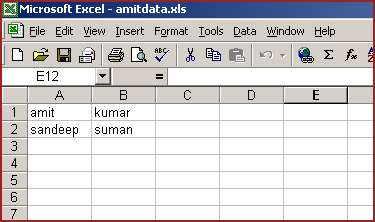
Excel file data is as :
Here is the full example code as follows :
| <html> <head> <title> Style Get data from excel sheet </title> <script language="javascript" > function GetData(cell,row){ var excel = new ActiveXObject("Excel.Application"); var excel_file = excel.Workbooks.Open("C:\\amitdata.xls"); var excel_sheet = excel.Worksheets("Sheet1"); var data = excel_sheet.Cells(cell,row).Value; document.getElementById('div1').innerText =data; } </script> </head> <body> <p> </p> <div style="background: #009955; width:'100%';" align="center"> <font color="#000080" size="12pt"> <b>Get data from excel sheets</b> </font> </div> <center> <p> </p> <div id="div1" style="background: #DFDFFF; width:'100%';" align="center"> Click buttons to fetch data from c:\amitdata.xls </div> <input type="button" value="cell(1),row(1)" onClick="GetData(1,1);" /> <input type="button" value="cell(1),row(2)" onClick="GetData(1,2);" /> <input type="button" value="cell(2),row(1)" onClick="GetData(2,1);" /> <input type="button" value="cell(2),row(2)" onClick="GetData(2,2);" /> </center> </body> </html> |
Output :
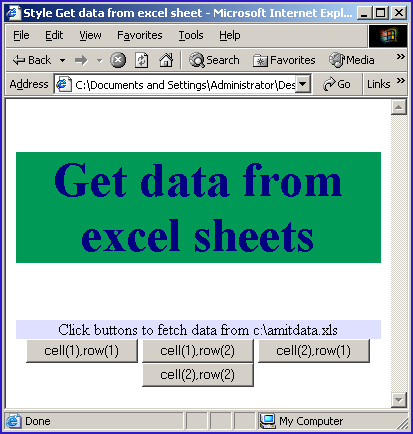
Click on the button "cell(1), row(1)"
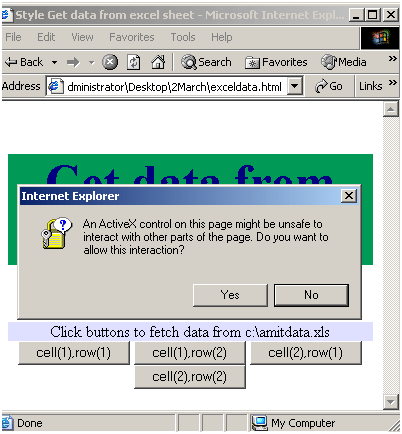
Click on "Yes". It will show you the cell(1), row(1) value i.e "amit".

Click on next button to fetch data from the cell(1) and row(2)
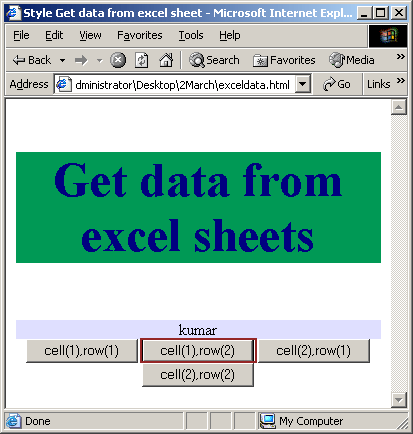
Above image shows fetched data from cell(1) and row(2). Click on next button to fetch data from the cell(2) and row(1)
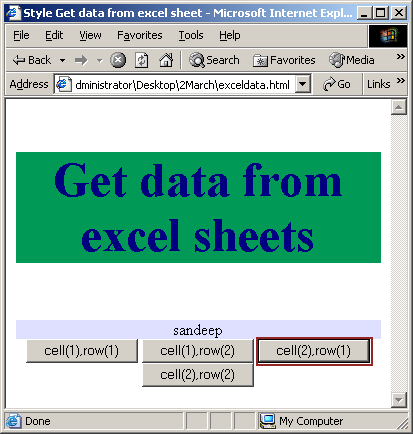
Above image shows fetched data from cell(2) and row(1). Click on next button to fetch data from the cell(2) and row(2)
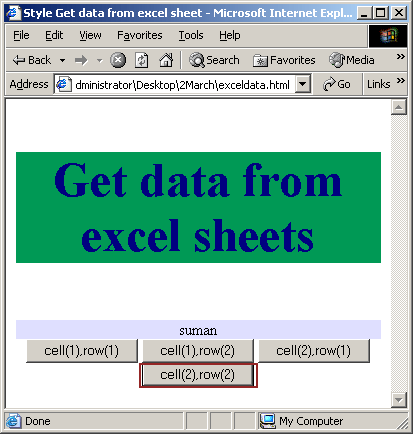
Above image shows fetched data from cell(2) and row(2).


Tutorials
- Clear cookie example
- JavaScript getElementById innerHTML
- JavaScript getElementById Style
- Javascript Examples
- JavaScript add row dynamically to table
- New Page 1
- JavaScript Change link
- JavaScript Checkbox getElementById
- javascript clear textarea
- JavaScript Clock Timer
- JavaScript Cookies
- JavaScript Date Difference
- JavaScript duplicate string
- JavaScript Email Validation
- javascript focus input
- JavaScript get excel file data
- JavaScript getAttribute Href
- JavaScript getAttribute Style
- JavaScript getElementById div
- JavaScript getElementById Iframe
- JavaScript getElementById select
- JavaScript Hide Button
- JavaScript Hide Div
- JavaScript hide image
- JavaScript Hide Table Column
- JavaScript Hide Table Rows
- JavaScript Key Event
- JavaScript link
- JavaScript method location
- JavaScript move div
- JavaScript move file
- JavaScript move image
- JavaScript Navigate Back
- JavaScript navigate to page
- JavaScript Navigate to URL
- JavaScript indexOf substring
- JavaScript onkeypress event
- JavaScript Open file
- JavaScript Open link in new window
- JavaScript Open Modal Window