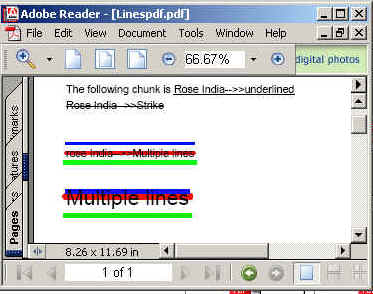
In this section, you will see how to create multiple lines in java.

Create Multiple Lines


iText APIs provides facility to make the lines. In this program we are going to tell you how you can make single lines and how you can make multiple lines on the text in pdf files. You can make multiple lines and also make colorful lines by using this example.
In this example we are making an object of Chunk.
Then set under line, using setUnderLine( float f, float f) method. For
new line we use Chunk.NEWLINE. We are also creating colorful lines.
Code Description:
Following methods are used for creating multiple and colorful lines:
Chunk.NEWLINE:
This method is used to a make new line.
Chunk.setUnderLine(Color color, float
thickness, float thicknessmul, float y, float ymul, int cap):
This method is used to create a colorful line. You
can set thickness and y position of the text where the line will be seen.
When you increase it's value then the line will be seen towards the top of
the text and the line will be seen towards the bottom of the text when you
decrease the value. You can understand better changing it's value. Inside
the method, parameter thicknessmul is used for setting line thickness
according to the font size. You can
also set ypositionmul for setting the line position on text towards the
top or bottom. It is also a multiplication factor with the font size.
Integer type value cap is used to set the line at beginning and ending
point of the line.
PdfContentByte.LINE_CAP_PROJECTING_SQUARE:
This is projecting square cap. The stroke continues beyond the endpoint of the
line. It's value is equal to 2 that is of integer type.
PdfContentByte.LINE_CAP_BUTT:
This is Butt Cap. This stoke is squared off the
endpoint of line. There is no projection beyond the end of the line. It's
value is equal to 0 that is of integer type.
PdfContentByte.LINE_CAP_ROUND:
This is Round Cap. A semicircular arc with a diameter equal to the width
is drawn around the endpoint and filled in. It's value is 1 that is of
integer type.
The code of the program is given below:
import java.awt.Color;
|
The output of the program is given below: