JSF commandButton Tag


This section illustrates more about commandButton tag in JSF. This tag renders an HTML submit button. This button can be associated with bean. You can perform any operations at particular event by associating actionListener class for event handling. You can do any thing with JSF component by the external resources like showing message from the message bundle and handling form data after submission the form by backing bean.
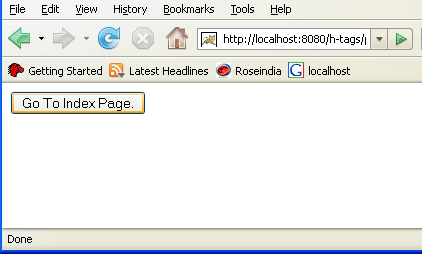
This section also providing a program with complete code which display a command button inside a form. When you will click on the button, it's action attributes send a value "page1" to the faces-config.xml file where navigation has been made with the "page1" value. And the navigation refers the control to the Index page.
Code Description:
<%@ page contentType="text/html" %> |
Rendered Output:
HTML Source Code:
<html> <head><title>jsf h:commandButton example</title></head> <body> <form id="_id0" method="post" action="/ h-tags/pages/commandButton/commandButton.jsf" enctype="application /x-www-form-urlencoded"> <input type="submit" name="_id0:_id1" value="Go To Index Page." /> <input type="hidden" name="_id0" value="_id0" /> </form> </body> </html> |
JSF commandButton tag has some attribute for different purposes. These attributes are explained below:
- action: This attribute holds a value for passing values from the page to the faces-config.xml file where the operation or navigation from the page to another page is decided.
- actionListener: The actionListener attribute of the commandButton tag is used to assign an action listener method from backing bean that performs the specific operation.
- id: Value of the attribute is used for identifying the component uniquely. This attribute must have a unique value in the closest container.
- immediate:It's value is a boolean value that indicates for the component events that should be sent to registered event listeners immediately. The immediate attribute allows you to turn off validation for a particular component.
- rendered: This attribute takes a boolean value that indicates for the rendering it or not in the view.
- value: This is the attribute holding the default value for the component whether it is specified directly or by the backing bean or any other external resources like message bundle.
- accesskey: This is the html attribute which specify key by pressing that key the component will be focused and accessed.
- alt: This is also a html attribute that is used for showing the textual description on mouse over of the component.
- dir: This attribute sets the value which define the component text direction. It sets the value like "LTR" means "left-to-right" and "RTL" means "right to left" direction.
- disabled: This attribute takes a boolean value. If the value is true then the component will be disabled otherwise the component will be enable.
- image: This attribute takes a relative or absolute url of the image that has to be displayed on the component. The image attribute is used for showing image on the component.
- lang: It sets the code for the language to be used in the markup generated by this component.
- onblur: This attribute indicates the event of the component. As the value of this attribute is defined as a JavaScript method which has to be performed when the component loses the focus.
- onchange: Specified JavaScript method is executed when the value has changed on losing focus after gaining focus.
- onclick: In the attribute, a JavaScript method is specified that is called when the component is clicked by user.
- ondblclick: This attribute indicates for performing the specified operation when the component is clicked two times continuously (or double click).
- onfocus: The JavaScript method can be called for the component when the component is focused.
- onkeydown: The specified JavaScript method or operation is performed when the key is pressed down over the component.
- onkeypress: This is the event of the component. It indicates the key press event. You can call a JavaScript method on the event of the component whatever you have mentioned.
- onkeyup: The specified JavaScript method is executed when key is released over this component.
- onmousedown: Specified JavaScript method is executed when mouse is pressed down over the component or element.
- onmousemove: This attribute sets the JavaScript code to executed when the mouse pointer is moved within the component or element.
- onmouseout: This attribute sets the JavaScript code to execute when the mouse pointer is moved away from the element or the component.
- onmouseover: This attribute sets the JavaScript code to execute when the mouse pointer is moved inside the element or the component.
- onmouseup: This attribute sets the JavaScript code to executed when the mouse pointer is released from the component.
- onselect: When you select the text contained by the component or element then the value of the attribute (JavaScript code) will be executed.
- readonly: This attribute sets the boolean value for making the component read-only or not.
- style: If you want ot add any CSS with the component then you can put the style as the value of the attribute. Added CSS will be applied on for the component.
- styleClass: This attribute holds the CSS class name which is defined in the external style sheet.
- tabindex: This attribute sets the tab index for the component. When you press the TAB key then the component will be focused after focusing all those components whose tab index is less than the component.
- title: This attribute holds a string value that is shown as a tool-tip text of a component or element.
- type: This attribute tells the component type whether it is submit type or reset etc.
- binding: This attribute binds the specified value with the backing bean.