Developing Axis Web services with XML Schemas.
 |
|
 |

Developing SOAP based web services (Note: If you are looking for RESTful web services, please refer Axis2 ) with Axis1.4 is pretty easy, if the consuming clients are purely java. The real challenge comes if you want to make your web services interoperable with wide range of clients including .Net, Perl, C++ and Flash MX etc.
Axis supports 4 types of web service styles i.e. RPC, DOCUMENT, Wrapped and Message. But the ?document/literal' type web services are most interoperable with wide range of clients.
This tutorial does not explain what are web services about or the SOAP message formats with different styles. For more information about AXIS web services you may visit the Axis website .
This tutorial will explain the step-by-step procedure to quickly develop the working web services with xml schemas. All the necessary Axis jar files are included in the tutorial source code project.
Step1: Identify your Web service and its business methods.
Here, I have identified ?StockQuoteService' is my web service and ?getStockQuote (String ticker)' is the business method. I am visualizing, the following java classes.
StockQuoteService.java
|
public class StockQuoteService { public Stock getStockQuote (String ticker) { // implement your business logic to return Stock Object } |
Stock.java
|
public class Stock { private String ticker; private Quote[] quotes; } |
Quote.java
|
public class Quote { private int quotePrice; private Date dtQuote; } |
Step2: Define XML Schema and WSDL .
1. Define XML Schema ( Stock.xsd ). You can find this file in the downloaded project under directory StockQuote\src\ws\schemas.
The two java objects 'Stock' and 'Quote' are defined as shown below in Stock.xsd.
Stock element has two attributes; one is ?ticker' of data type xsd:string and the other is ?quotes' which is array of ?Quote' elements. maxOccures=?unbounded? indicates that stock object contains array of ?quote' objects.
Quote element has two attributes, one is ?quotePrice' of data type xsd:int and the other is ?dtQuote' of data type xsd:date.

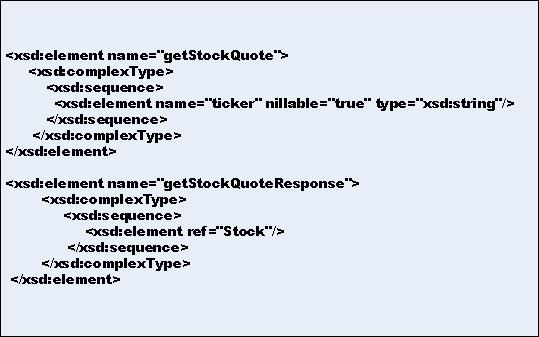
Web service messages to ?getStockQuote()', for input and out put parameters are defined as shown below.
?getStockQuote' element represents the input parameter to the to the web service method ?getStockQuote()'.
?getStockQuoteResponse' element represents the out parameter of the web service method getStockQuote().
2. Define WSDL (StockQuote.wsdl). You can find this file under the directory StockQuote\src\ws\schemas.
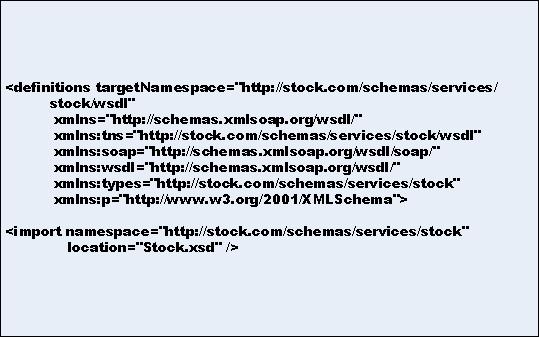
Below section shows the definition of the namespace. The namespace need not be actual URL on the web. Also note that we have imported the Stock.xsd with proper namespace, which we defined in A.
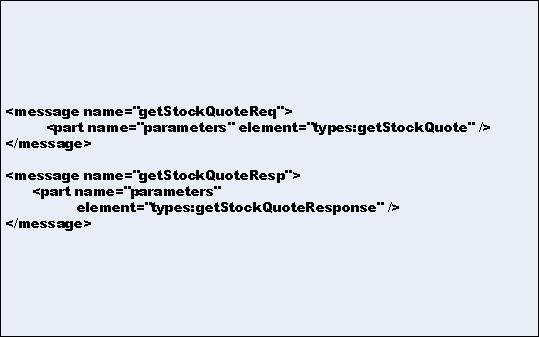
Below section shows the definition of the input and out put messages for our business method. Note that the part name is the actual name defined in Stock.xsd file.
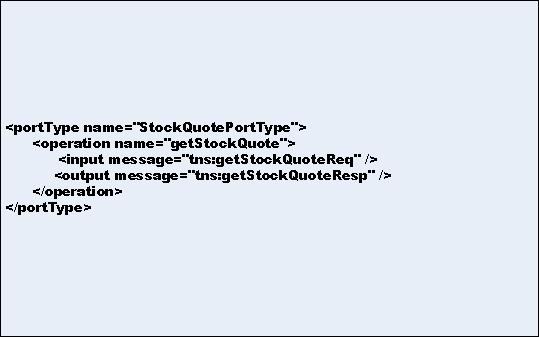
Below section shows the definition of Port type and the operation (our business method) with input and out put parameters.
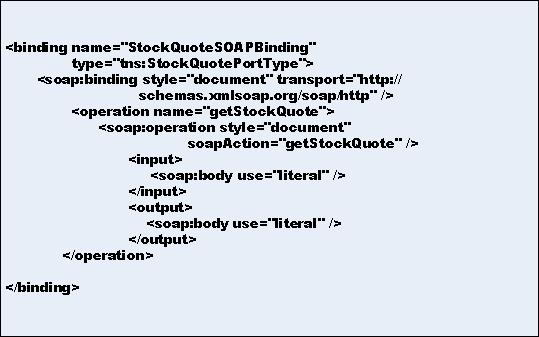
Below section shows the definition of binding name for the above port type. Here we defined the web service style as ?document'.

Step3: Run WSDL2JAVA task by running schema-build.xml file located
under directory StockQuote\src\ws.
Note the below given axis-wsdl2java task. Here we pointed URL attribute to the ?stockquote.wsdl' file. There is another file called NStoPackages.properties, which defines the Name Space to Package definitions to the generated java files. 0
This will generate Stock.java, Quote.java , web service files and deploy.wsdd files under the directory StockQuote\src\ws\wsdd-build
Copy Stock.java and Quote.java files to ?StockQuote\src\com\stock\model' directory.
Open the deploy.wsdd file and remove unwanted ?>'characters from rtns:>Stock and ns:>Stock. I found axis tool is adding these unwanted ?>' characters. 1
Change the class name to our actual implemented web service class
<parameter name = ?className? value=?com.stock.model.Quote.StockQuoteService?/>
Copy <Service> to </Service> tag from deploy.wsdd file and replace in 2
StockQuote\web\web-inf\ server-config.wsdd file.
Note : once the moving of java files and copying of wsdd file is done, delete the directory ?wsdd-build'. Other wise, the next step project build will give compile errors. For the sake explanation schama-build.xml file configured to generate the files under ?wsdd-build' directory. This can be configured to your actual model class directory, so that moving of java files are not needed.
Step4: Build and deploy the web service. 3
Run build.xml located under directory stockQuote . This will build the project and generate stock.war file under ?dist' directory. Deploy this war file in tomcat.
In your browser open the URL http://localhost:8080/stock/services/StockQuoteService?wsdl .
You should be able to see the axis generated WSDL file in the browser. 4
Step5: Test the deployed web service.
Run StockQuote\webservice-client\webserviceclient-build.xml file. Note the deployed web service URL in this build file. Change this to appropriate URL, if your server port and host name are different. This will generate the required client stub classes.
Run StockQuoteTest.java located under ?StockQuote\webservice-client\client' directory. 5
If all well you should be able to see the output with out any exception.
. 6
|
|
|