How to design a CPU


We will learn with this example how to draw a CPU, follow every step that is mentioned in this tutorial.
New File: Take a new document.
Rounded rectangle shape: Draw a rounded rectangle shape with "Black" by the Rounded rectangle tool (U key).

Now choose again rounded rectangle tool to draw a shape inside the shape with white color.
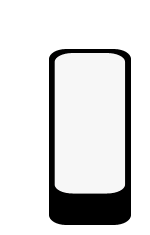
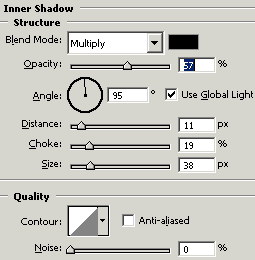
Effect: Go to Layer menu > Layer style > Inner shadow and use same settings.

Rectangle shape: Choose "white" color and Rectangle tool (U key) to draw a shape.
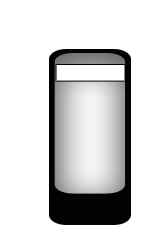
Use same step to make another.
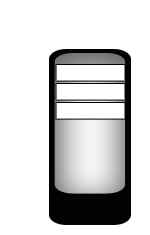
Make a little rectangle shape with same as done up.
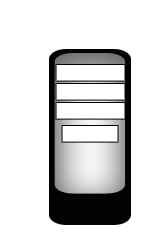
Draw a rectangle shape with "Black" color in the little rectangle shape.
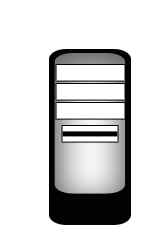
Keep using rectangle tool make as here.
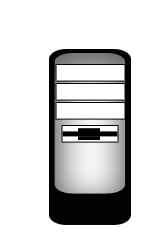
Button: Choose Ellipse tool (U key) and "7d7d7d" color to draw a circle.

Effects: Go to Layer menu > Layer style > Gradient Overlay, Bevel and Emboss and use both settings.
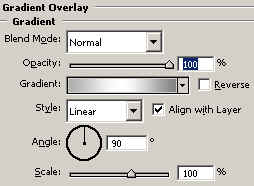
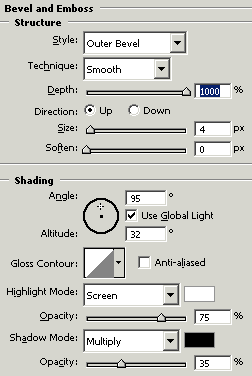
You will get it.

Choose ellipse tool (U key) again and "Black" color then draw a little circle as looking below.

Effect: Go to Layer menu > Layer style > Bevel and Emboss and use same settings. 0


Hold Alt key and scroll below your mouse, you will get another button. Now you have to change color "Black" to "Red" and set at this position. 1

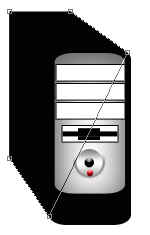
Choose Pen tool (P key) and point with "Black" color.
 2
2
This is your final result.
3