
Add and Delete Element Using Javascript in JSP


In this section, we have developed an application to add and delete element using javascript . We created two file addperson.jsp, show.jsp.
Brief description of the flow of the application:
- User opens addperson.jsp in the browser and create three button's on this page "Add","Remove" and "Submit"..
- After click on the Add Button user can add the
new Person and after clicking on the Remove Button
user can Remove the Person and
after clicking on Submit button person list display on the next page "show.jsp".
Step 1: Create a web page ("addperson.jsp") to add and remove the person.
<!DOCTYPE HTML PUBLIC "-//W3C//DTD HTML 4.0 Transitional//EN">
<HTML>
 <HEAD>
  <TITLE>Add/Delete Person</TITLE>
  <script>
  function validate()
  {

	   var len;
	   if(document.getElementById("psize").value=="")
	  {
		    len = 1;
	  }
	  else
	  {
		  len  = parseInt(document.getElementById("psize").value);
	  }

	        for(var i=1; i<=len; i++) {
			var person = "person" + i;
			if(document.getElementById(person).value=="")
			{
				alert("Please enter person");
				document.getElementById(person).focus();
				return false;
			}
		}
	  return true;
  }
function addRow()
{
  var ptable = document.getElementById('ptablePerson');
  var lastElement = ptable.rows.length;
  var index = lastElement;
  var row = ptable.insertRow(lastElement);


  var cellLeft = row.insertCell(0);
  var textNode = document.createTextNode(index);
  cellLeft.appendChild(textNode);

  var cellText = row.insertCell(1);
  var element = document.createElement('input');
  element.type = 'text';
  element.name = 'person' + index;
  element.id = 'person' + index;
  element.size = 30;

  cellText.appendChild(element);
  document.getElementById("psize").value=index;
  }

function removeRow()
{
  var ptable = document.getElementById('ptablePerson');
  var lastElement = ptable.rows.length;
  if (lastElement > 2) ptable.deleteRow(lastElement - 1);
  if(document.getElementById("psize").value>1)
	{
	   document.getElementById("psize").value =
           document.getElementById("psize").value-1;
	}
}
</script>
 </HEAD>

 <BODY>

<form action="show.jsp" method="post" onsubmit="return validate();">
<input type="hidden" name="psize" id="psize">
<table style="border:1px solid #000000;" bgcolor="#efefef"
  id="ptablePerson" align="center">
<tr>
<th colspan="3">Add New Person</th>
</tr>
<tr>
<td>1</td>
<td><input type="text" name="person1"  id="person1" size="30" />
<input type="button" value="Add" onclick="addRow();" /></td> </tr> </table> <table align="center"> <tr><td><input type="button" value="Remove" onclick="removeRow();" /> <input type="Submit" value="Submit" /></td></tr> </table> </form> </BODY> </HTML> |
In this code having two Javascript function addRow()
and removeRow() for add and remove the person.
addRow() create a Text Box
Element using the code :
var cellText =
row.insertCell(1);
var element = document.createElement('input');
element.type = 'text';
element.name = 'person' + index;
element.id = 'person' + index;
element.size = 30;
cellText.appendChild(element);
removeRow() remove the last element when click on the remove button using the code :
function removeRow()
{
var ptable = document.getElementById('ptablePerson');
var lastElement = ptable.rows.length;
if (lastElement > 2) ptable.deleteRow(lastElement - 1);
if(document.getElementById("psize").value>1)
{
document.getElementById("psize").value =
document.getElementById("psize").value-1;
}
}
Step:2Create a
webpage ("show .jsp") to display the person.
<html>

 <body>

 <br><br>

  <table width="200px" align="center" style="border:1px solid #000000;">

   <tr><th>Person List</th></tr>

      <%

      String person ="";

      int size=0;

      if(request.getParameter("psize")!=null && request.getParameter("psize")!="")

      {

	try

	{

		size  = Integer.parseInt(request.getParameter("psize").toString());

		//out.println(size);

		for(int i=1;i<=size;i++)

		{

		person = "person"+i;

		%>

		<tr><td style="background-color:#f7f7f7;color:green;font-weight:bold;text-align:center;">
     <%=request.getParameter(person).toString()%></td></tr>

		<%

		}

	}

	catch(Exception e)

	{

		out.println("Error1 : " + e.getMessage());

	}


      }

      else if(request.getParameter("person1")!=null && request.getParameter("person1")!="")

      {


	try

	{

		%>

		<tr><td style="background-color:#efefef;color:#ff0000;font-weight:bold;text-align:center;">
      <%=request.getParameter("person1").toString()%></td></tr>

		<%

	}

	catch(Exception e)

	{

		out.println("Error2 : " +e.getMessage());

	}


      }

      else

      {

	%>

	 <tr><td><%="No Person Found"%></td></tr>

	 <%

      }


      %>

      </table>

      </html>
Output :
Add one person :
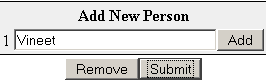
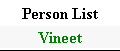
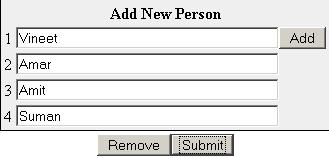
Add more then one person :

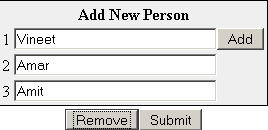
After remove the person :
Download the full web application shows here.