JSF Forms - Developing form based application


Complete Java Server Faces (JSF) Tutorial - JSF Tutorials. JSF Tutorials at Rose India covers everything you need to know about JSF.
Developing Forms in JSF 1.2
In this tutorial we will show you how to develop UI forms using JSF 1.2.
For this tutorial we will use the project developed in the last section Installing JSF
1.2 on tomcat. After completing this tutorial you will be able to
develop user entry forms in JSF 1.2 technology.
About JSF Forms Application
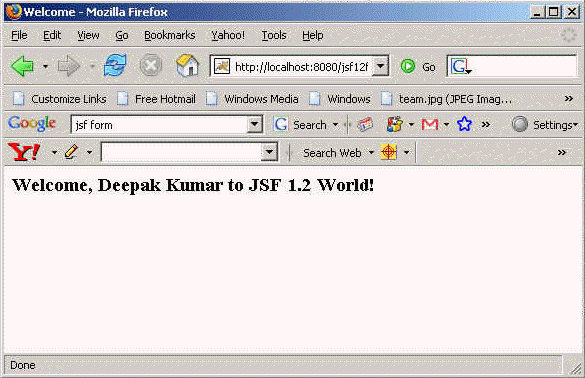
The application we are going to develop displays a form to the user asking user to enter the name. When user enters the name and clicks on the "OK" button, welcome message "Welcome <user> to JSF 1.2 World!" is displayed to the user in new screen.
Creating web application
Download the application created in the Installing JSF 1.2 on tomcat section and rename this application to "jsf12forms" and deploy on the Tomcat 6.0 server.
Steps to develop the Application
We can divide the process into following steps:
- Create user interface components (JSP files)
- Create manage bean
- Write navigation rules
- Compile the application
- Deploy and test the application
Let's follow the steps to develop the application.
- Create UI Screens (JSP files)
In this application we are going to develop two pages inputname.jsp and welcome.jsp. The inputname.jsp prompts the user to enter his/her name. Code of inputname.jsp is:
<%@ taglib uri="http://java.sun.com/jsf/html" prefix="h" %>
<%@ taglib uri="http://java.sun.com/jsf/core" prefix="f" %>
<html>
<head>
<title>enter your name page</title>
</head>
<body>
<f:view>
<h1>
<h:outputText value="JSF 1.2 Tutorial"/>
</h1>
<h:form id="UserEntryForm">
<h:outputText value="Enter Your Name:"/>
<h:inputText value="#{UserBean.userName}" />
<h:commandButton action="welcome" value="OK" />
</h:form>
</f:view>
</body>
</html>Save the above file in "webapps\jsf12forms\user" directory.
Now let's examine the code of inputname.jsp. The first two lines of the actually are the directives which specify the location to find the JSF tags that defines HTML elements and core JSF tags respectively.
JSF HTML Tags: <%@ taglib uri="http://java.sun.com/jsf/html" prefix="h" %>
JSF Core Tags: <%@ taglib uri="http://java.sun.com/jsf/core" prefix="f" %>
The tag <h:outputText value="JSF 1.2 Tutorial"/> simply generates "JSF 1.2 Tutorial" text that is displayed on the user screen.
The code that generates forms and buttons:
1 <h:form id="UserEntryForm">
2 <h:outputText value="Enter Your Name:"/>
3 <h:inputText value="#{UserBean.userName}" />
4 <h:commandButton action="welcome" value="OK" />
5 </h:form>Line 1: Generates HTML code for the form.
Line 2: Prints the message "Enter Your Name:" on the screen.
Line 3: Creates HTML text input element, where user can enter his/her name. The attribute value="#{UserBean.userName}", actually bind this filed with the managed beans property "userName".
Line 4: Creates HTML submit button with the text "OK" on it.
Line 5: Creates HTML forms end tag </form>
Next file is welcome.jsp, which displays the welcome message to the user. The welcome.jsp contains following code:<%@ taglib uri="http://java.sun.com/jsf/html" prefix="h" %>
<%@ taglib uri="http://java.sun.com/jsf/core" prefix="f" %>
<html>
<head>
<title>Welcome</title>
</head>
<body>
<f:view>
<h3>
<h:outputText value="Welcome" />,
<h:outputText value="#{UserBean.userName}" /> to JSF 1.2 World!
</h3>
</f:view>
</body>
</html>Save above file in "webapps\jsf12forms\user" directory. Above file displays welcome message to user.
The code <h:outputText value="#{UserBean.userName}" /> to JSF 1.2 World! is used to display the message on the welcome page.
-
Create managed Bean
Now we will create a bean that will hold the form data (user name in this case) entered by user. This bean is also know as backing bean or JSF managed bean. The JSF managed bean is a regular JavaBeans components whose property and methods are used by JSF components.
Here is the code of our Managed Bean (UserNameBean.java):
package net.roseindia;
public class UserNameBean {
String userName;
/**
* @return User Name
*/
public String getUserName() {
return userName;
}
/**
* @param User Name
*/
public void setUserName(String name) {
userName = name;
}
}Save UserNameBean.java into "webapps\jsf12forms\WEB-INF\src\java\net\roseindia" directory.
We can define the BackingBean in the "faces-config.xml" using the following code:
<managed-bean>
<managed-bean-name>UserBean</managed-bean-name>
<managed-bean-class>net.roseindia.UserNameBean</managed-bean-class>
<managed-bean-scope>request</managed-bean-scope>
</managed-bean>
- Writing the navigation rule
Open the faces-config.xml and add the following code to define the navigation rule:
<navigation-rule>
<from-view-id>/user/inputname.jsp</from-view-id>
<navigation-case>
<from-outcome>welcome</from-outcome>
<to-view-id>/user/welcome.jsp</to-view-id>
</navigation-case>
</navigation-rule>
The file version of faces-config.xml is:
<?xml version='1.0' encoding='UTF-8'?>
<!DOCTYPE faces-config PUBLIC
"-//Sun Microsystems, Inc.//DTD JavaServer Faces Config 1.1//EN"
"http://java.sun.com/dtd/web-facesconfig_1_1.dtd">
<faces-config>
<navigation-rule>
<from-view-id>/user/inputname.jsp</from-view-id>
<navigation-case>
<from-outcome>welcome</from-outcome>
<to-view-id>/user/welcome.jsp</to-view-id>
</navigation-case>
</navigation-rule>
<managed-bean>
<managed-bean-name>UserBean</managed-bean-name>
<managed-bean-class>net.roseindia.UserNameBean</managed-bean-class>
<managed-bean-scope>request</managed-bean-scope>
</managed-bean>
</faces-config>
-
Compiling the application
Now we are at the final stage of the development. We will use ant tool to compile the application. So, you download the final version of the application that contains the build.xml file and directories necessary to build the application. Download the full application now.
To compile the application go to "apache-tomcat-6.0.13\webapps\jsf12forms\WEB-INF\src" directory and issue ant command.
C:\>cd C:\testjsf\apache-tomcat-6.0.13\webapps\jsf12forms\WEB-INF\src
C:\testjsf\apache-tomcat-6.0.13\webapps\jsf12forms\WEB-INF\src>ant
Buildfile: build.xml
clean:
[delete] Deleting directory C:\testjsf\apache-tomcat-6.0.13\webapps\jsf12form
s\WEB-INF\classes
[mkdir] Created dir: C:\testjsf\apache-tomcat-6.0.13\webapps\jsf12forms\WEB-
INF\classes
prepare:
resources:
compile:
[javac] Compiling 1 source file to C:\testjsf\apache-tomcat-6.0.13\webapps\j
sf12forms\WEB-INF\src\classes
[jar] Building jar: C:\testjsf\apache-tomcat-6.0.13\webapps\jsf12forms\WEB
-INF\lib\jsf12tutorial.jar
project:
all:
BUILD SUCCESSFUL
Total time: 10 seconds
C:\testjsf\apache-tomcat-6.0.13\webapps\jsf12forms\WEB-INF\src>
To test the application run tomcat and type http://localhost:8080/jsf12forms/user/inputname.jsf. You browser should display the Input screen. Enter your name and press ok: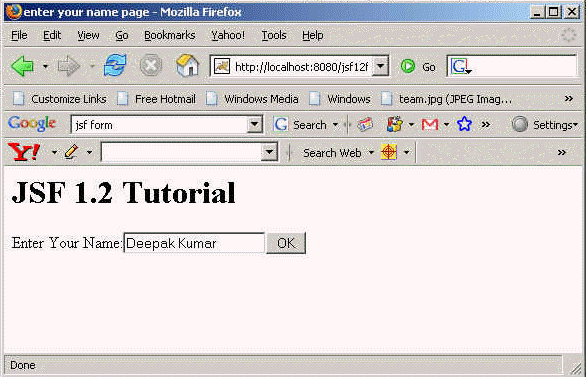
The welcome screen should look like: