
Validations using Struts 2 Annotations


Validating Struts 2 Login Application using Annotations
In this section we are going to validate our login application using Annotations
in Action class. Our current login application does not validate the user
against the database. Instead login name and passwords are validated against the
hardcode values (User: Admin and Password: Admin) in the actions class.
Working of the application
- Login page is displayed to take the input.
- User enters user name and password and then clicks on the "Login" button.
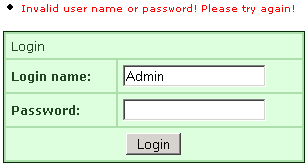
- User validation is done in action class and if user enters Admin/Admin in the user name/password fields, then success page is displayed, Otherwise the error message is displayed on the screen.
Steps to develop the application
Here are simple and easy steps to develop Login page in the using Struts 2 framework.
- Develop Login Form
The GUI of the application consists of login form (log-in.jsp) and success message page (loginsuccess.jsp).
The log-in.jsp is used to display the login page to the user. In our application it is saved in "webapps\struts2tutorial\pages\" folder. Here is the code of log-in.jsp file:
<%@ taglib prefix="s" uri="/struts-tags" %>
<html>
<head>
<title>Struts 2 Login Application!</title>
<link href="<s:url value="/css/main.css"/>" rel="stylesheet" type="text/css"/>
</head>
<body>
<s:form action="AnnotationAction" method="POST" validate="true">
<tr>
<td colspan="2">
Login
</td>
</tr>
<tr>
<td colspan="2">
<s:actionerror />
<s:fielderror />
</td>
</tr>
<s:textfield name="username" label="Login name"/>
<s:password name="password" label="Password"/>
<s:submit value="Login" align="center"/>
</s:form>
</body>
</html>
The code :
<s:actionerror />
<s:fielderror />
displays action errors and field validation errors.The code <s:form action="AnnotationAction" method="POST" validate="true"> generates the html form for the application.
The code :
<s:textfield name="username" label="Login name"/>
<s:password name="password" label="Password"/>
generates Login Name and Password fields.The submit button is generated through <s:submit value="Login" align="center"/> code.
The loginsuccess.jsp page displays the Login Success message when user is authenticated successfully. Here is the code of loginsuccess.jsp file:
<html> <head>
<title>Login Success</title>
</head>
<body>
<p align="center"><font color="#000080" size="5">Login Successful</font></p>
</body>
</html>
- Developing Action class (using Annotations
to validate Login forms)
Now let's develop the action class to handle the login request. The Struts 2 framework provides a base ActionSupport class to implement commonly used interfaces. In our action class (AnnotationAction.java) we have extended ActionSupport class and imported thecom.opensymphony.xwork2.validator.annotations package.
For validating the login application java script can be added to the jsp page or in action class, but Struts 2 provides another very easy method to validate your form fields using annotations in the action class.
Two annotations are needed,
1. The @Validation annotation tells Struts that action in this class might need to be validated.
2. The @RequiredStringValidator annotation is used for the text input to hold a singular value.
Rest of the care is taken by the framework.
Our "AnnotationAction" class is saved in the "webapps\struts2tutorial\WEB-INF\src\java\net\roseindia" directoy. Here is the code ofAnnotationAction.java action class:
In this class we will write the code to validate the login page.
AnnotationAction.java
|
package net.roseindia; import com.opensymphony.xwork2.ActionSupport; import com.opensymphony.xwork2.validator.annotations.*; @Validation public class AnnotationAction extends ActionSupport { private String username = null; private String password = null; @RequiredStringValidator(message="Supply name") public String getUsername() { return username; } public void setUsername(String value) { username = value; } @RequiredStringValidator(message="Supply password") public String getPassword() { return password; } public void setPassword(String value) { password = value; } public String execute() throws Exception { System.out.println("Validating login"); if(!getUsername().equals("Admin") || !getPassword().equals("Admin")){ addActionError("Invalid user name or password! Please try again!"); return ERROR; } else{ return SUCCESS; } } } |
- Configuring action mapping (in struts.xml)
Now we will create action mapping in the struts.xml file. Here is the code to be added in the struts.xml:
<action name="LoginAnnotation">
<result>/pages/log-in.jsp</result>
</action>
<action name="AnnotationAction" class="net.roseindia.AnnotationAction">
<result name="input">/pages/log-in.jsp</result>
<result name="error">/pages/log-in.jsp</result>
<result>/pages/loginsuccess.jsp</result>
</action>
In the above mapping the action "LoginAnnotation" is used to display the login page and "AnnotationAction" validates the user using action class (
AnnotationAction.java). - CSS file (main.css)
This css file is used to enhance the presentation of the login form. The main.css is saved into "\webapps\struts2tutorial\css" directory.
Here is the code of main.css:
@CHARSET "UTF-8";
body {
font: 12px verdana, arial, helvetica, sans-serif;
background-color:#FFFFFF;
}
table.wwFormTable {
font: 12px verdana, arial, helvetica, sans-serif;
border-width: 1px;
border-color: #030;
border-style: solid;
color: #242;
background-color: #ada;
width: 30%;
margin-left:35%;
margin-right:35%;
margin-top:15%;
}
table.wwFormTable th {
}
table.wwFormTable tr td {
background-color: #dfd;
margin: 5px;
padding: 5px;
}
.tdLabel {
/*
border-width: 1px;
border-color: #afa;
border-style: solid;
*/
font-weight: bold;
align: top;
}
.label {
}
.errorMessage {
color: red;
font-size: 0.8em;
}
#headerDiv {
border-style: solid;
border-width: 1px 1px 0px;
border-color: black;
padding: 5px;
background-color: #7a7;
/* height: 22px; */
height: 1.8em;
/* margin-bottom: 12px; */
}
#buttonBar {
border-width: 0px 1px 1px;
border-style: solid;
border-color: black;
color: white;
margin-bottom: 12px;
background-color: #7a7;
height: 1.6em;
padding: 5px;
}
#appName {
color: white;
font-size: 1.8em;
}
#pageTitle {
font-size: 1.4em;
color: #dfd;
clear: none;
}
#appName, #pageTitle {
float: right;
}
#menuContainer {
float: left;
}
#brandingContainer {
float: right:
text-align: right;
}
Compiling the application
To compile the application go to "\webapps\struts2tutorial\WEB-INF\src" directory and type ant command. The ant tool will compile the application for you.
Adding the link into index.html
Finally we have to add the link in the index.html to access the login form.
<ul>
<li><a href="roseindia/LoginAnnotation.action">Action Annotation Example</a></li>
</ul>
Output:
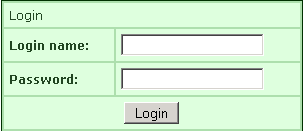
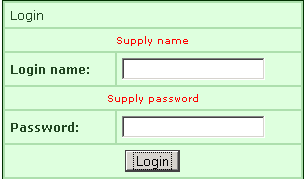
If you click Login button without filling the fields , you will get the output page as :
 |
 |
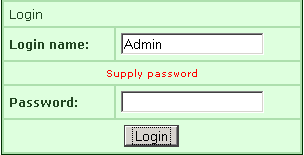
If you fill only the "Login name" field and click Login button without filling the next fields, you will get the output page as :
 |
 |
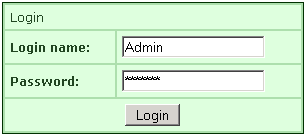
If you fill the wrong information and click the Login button, you will get the output page as :
| |
 |
|
If you fill the correct information and click the Login button, you will get the output page as :
|
|
|
 |
|
